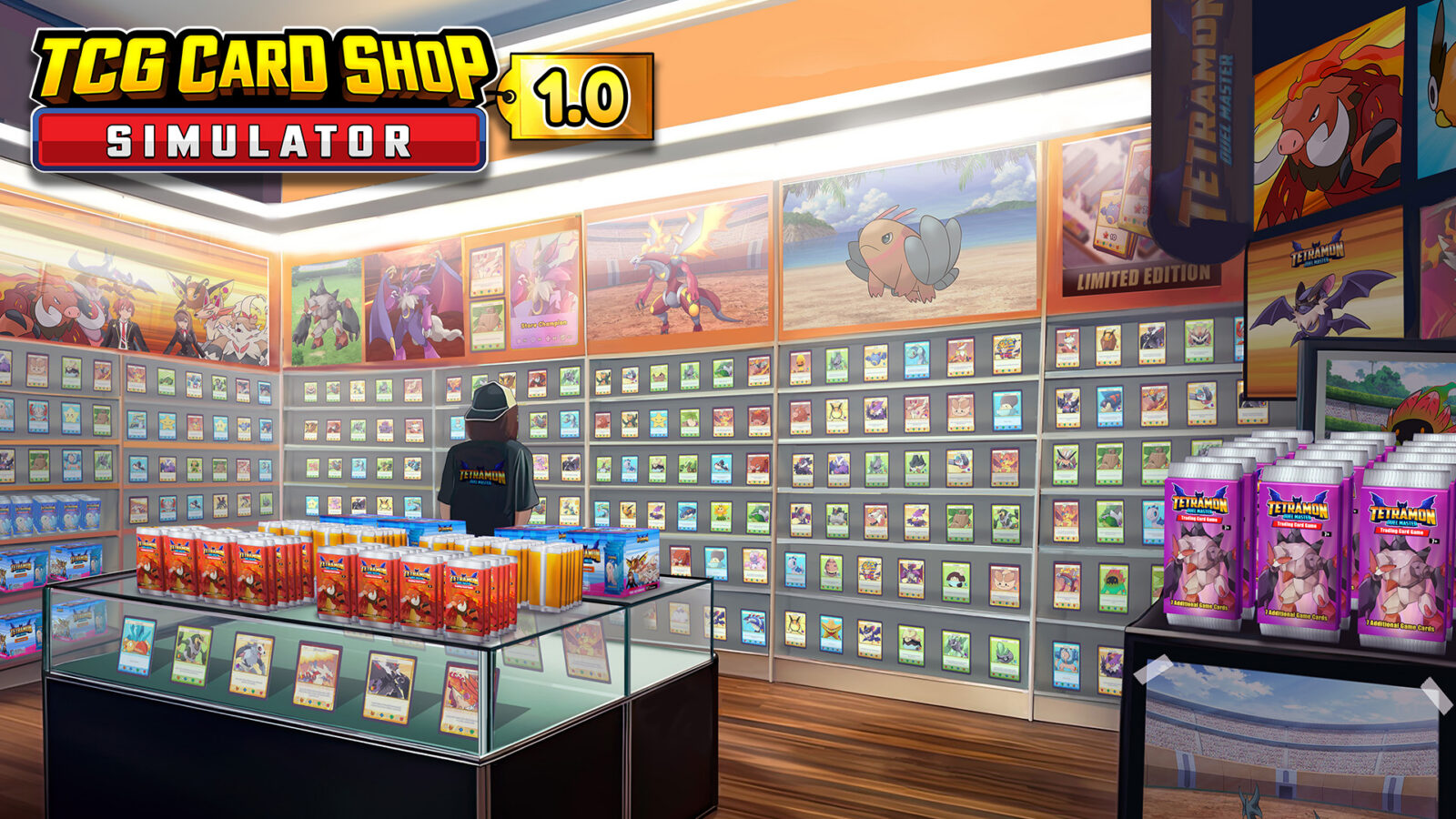
Are your TCG Card Shop Simulator graded cards disappeared? Discover how to locate your missing collectibles and prevent future inventory loss with our guide.
Published:
Table of Contents
Have you ever opened a high-stakes shipment of professional grades, only to find your precious TCG Card Shop Simulator graded cards disappeared from your inventory? It is a heart-stopping moment for any shop owner, especially when you have invested thousands of dollars into premium grading services.
This issue has become a common point of frustration for many players within the community. Understanding why your TCG Card Shop Simulator graded cards disappeared is the first step toward safeguarding your collection and maintaining the profitability of your card shop. In this guide, we will walk you through the most effective ways to locate your missing cards and how to navigate the game’s UI like a pro.
Why Graded Cards Go "Missing" in Your Shop
Many players assume their hard-earned gem mint cards have been deleted by a bug when, in reality, they are simply hiding in plain sight. Because the game features a complex inventory management system that separates raw cards from graded ones, the user interface can sometimes feel overwhelming.
According to various community reports, the most frequent reason for "missing" cards is simply that they were placed in a storage container or a specific display cabinet that the player forgot to check. Additionally, the game's default sorting filters in the binder often exclude graded items, making it look as though your inventory has been wiped clean.
Check Your Filters First
Before panicking, always toggle the sorting options in your card binder. Use the "R" key (on PC) or the dedicated controller menu to ensure your view includes all rarity types and specifically "Graded" cards.
How to Find Your Disappeared Graded Cards
If your TCG Card Shop Simulator graded cards disappeared after receiving them back from the grading service, don't worry—your progress is likely still there. The game handles graded items as a distinct category, and they do not automatically stack with your raw, ungraded inventory.
Step-by-Step Recovery Checklist
Follow these steps to track down your assets:
Step
Action
Why It Works
1
Open the Card Binder
The binder is the central hub for all card inventory in the game.
2
Use the Filter Menu
Press 'F' or 'R' to reveal advanced sorting options.
3
Toggle "Graded" Category
Often, the game defaults to showing only specific sets.
4
Check Storage Boxes
Ensure the cards weren't auto-deposited into nearby storage.
If you are using a controller, press the 'Y' button to open the management menu and verify that you are looking at the "Graded" tab specifically. Many players mistakenly look for their cards in the general shop catalog rather than the graded-specific filter.
The Reality of Game Bugs and Early Access Glitches
While user error accounts for most cases where TCG Card Shop Simulator graded cards disappeared, it is important to acknowledge that the game is still in development. The developers at OPNeon Games are continuously patching the game, but early access titles can occasionally suffer from save-state errors.
Common Scenarios Leading to Inventory Loss
Selling Display Furniture: If you sell a display case while a card is still inside it, the game may delete the contents along with the furniture.
The "Customer Steal" Bug: If a customer initiates a purchase exactly when you are modifying the store, the card might leave your inventory without you receiving the payment.
Binder Clipping: Occasionally, cards fail to register in the binder if they are dragged and dropped during a lag spike.
Prevention Strategy: Safe Trading Practices
To ensure your cards stay safe, always remove items from display cases before moving or selling the furniture. Furthermore, verify your inventory balance before and after sending a large batch of cards to be graded. Keeping a spreadsheet of your high-value assets can help you track whether a card truly vanished or if it was simply sold to a customer.
Mastering the Grading Process for Profit
Now that you know how to secure your inventory, it is worth discussing why grading is a core mechanic. Sending cards to be graded is the most effective way to maximize your profit per square foot in your store. Even with the cost of grading, the ROI (Return on Investment) for high-value cards is substantial.
Grading Service Comparison
Service Level
Cost (Approx)
Turnaround
Profitability
Standard
$500
4 Days
High
Premium
$1,500
2 Days
Very High (for rare cards)
By opting for the premium service, you reduce the time your high-value assets are "locked" in the grading process. This prevents the confusion of having too many cards out for delivery at once, which is often when players notice their TCG Card Shop Simulator graded cards disappeared—they simply lose track of which batch is where.
Tips for Managing High-Value Collections
If you are aiming for the "500 Gem Mint Cards" achievement, organization is non-negotiable. You cannot afford to lose track of your collection when you are trying to display multiple Ghost Foils or full-art sets.
Dedicated Storage: Keep a specific box or display cabinet only for graded cards that are ready for sale.
Batch Tracking: Send cards in small, manageable batches of 4-8. This makes it easier to verify that every card returned to your shop.
Avoid Overcrowding: Do not place too many cards in one display area; the game engine sometimes struggles to render or interact with items that are packed too tightly together.
Avoid Rapid Selling
Selling items too quickly while a customer is at the register can lead to UI glitches where the game fails to record the transaction, potentially causing the item to disappear from your inventory.
Conclusion
Finding that your TCG Card Shop Simulator graded cards disappeared can be stressful, but in the vast majority of cases, they are simply hiding behind the game's complex sorting filters. By utilizing the binder's filter menu, being careful with furniture placement, and tracking your grading batches, you can keep your shop running smoothly. As you continue to expand your shop, remember that organization is just as important as luck when it comes to pulling those rare cards. Stay patient, check your binders, and happy collecting!
Frequently Asked Questions (FAQ)
Q: Why did my TCG Card Shop Simulator graded cards disappeared from my display?
A: Most likely, you accidentally sold the display unit or the cards were returned to your binder after a UI reset. Check your binder's "Graded" filter first to locate them.
Q: Can I get my cards back if they were deleted due to a game bug?
A: Unfortunately, if a card was deleted due to a glitch, there is no in-game "undo" button. It is recommended to keep frequent backups of your save files.
Q: How do I filter my binder to see all my graded cards?
A: Open your binder and press 'R' or 'F' to access the sorting menu. Look for the "Graded" or "Rarity" settings to ensure all your high-value assets are visible.
Q: Are there specific cards that don't show up in the main binder?
A: Yes, cards from different expansions or special sets (like Ghost cards) require you to select those specific sets within the binder menu. Using the global search or filtering for "All" is the best way to find them.