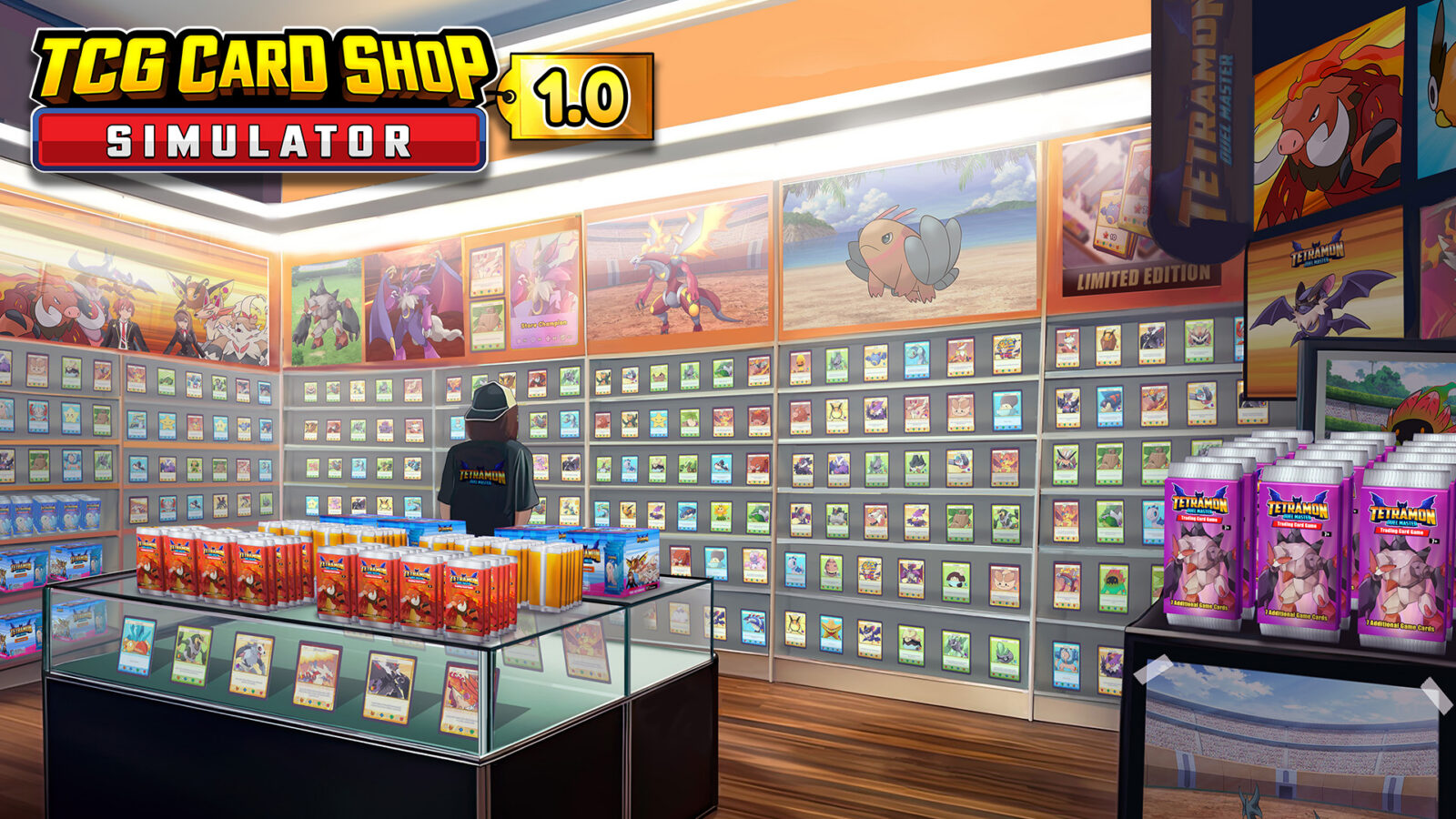
Can You Play TCG Card Shop Simulator on Steam Deck? Complete Guide
Thinking about running your hobby shop on the go? Discover how TCG Card Shop Simulator performs on Steam Deck, including setup tips, mods, and performance.
Published:
Table of Contents
Running your own hobby store is a dream for many, and with the rising popularity of simulation games, it is no surprise that fans are flocking to this title. If you are wondering how well TCG Card Shop Simulator works on Steam Deck, you are in the right place to find out if this management sim is your next portable obsession.
Managing a shop involves intricate tasks like scanning cards, pricing inventory, and interacting with customers. Bringing this level of complexity to a handheld device like the Steam Deck raises valid questions about performance, battery life, and control comfort. In this guide, we dive deep into how you can optimize your store management experience on Valve’s popular handheld.
Performance and Visuals on the Go
One of the biggest concerns for portable gaming is whether the hardware can handle the simulation load without sacrificing playability. According to community reports, the game is highly playable, with most users enjoying a smooth experience.
Settings Profile
Resolution
Frame Rate
Battery Life Estimate
High Performance
Native
50–60 FPS
~100 Minutes
Balanced
Native
30 FPS
~180 Minutes
Power Saver
720p
30 FPS (Locked)
~200+ Minutes
While the game is still in Early Access, it remains remarkably stable. The developers have clearly kept optimization in mind, allowing players to scale their visual settings to match their battery needs. If you are on a long flight or commute, capping the frame rate to 30 FPS is an excellent strategy to extend your gaming session significantly.
Mastering Controls for Shop Management
The core gameplay of TCG Card Shop Simulator revolves around precise interactions, such as scanning items and handling cash. While the game features native controller support, some players find the default configuration requires a little tweaking for maximum efficiency.
Because the game was originally designed with a mouse and keyboard in mind, the trackpads on your device are your best friend. They offer the precision necessary to navigate store shelves and manage the checkout register without the frustration of analog stick inaccuracy.
Recommended Controller Layout Tips
Trackpad Precision: Use the right trackpad as a mouse input to navigate the game menus and inventory tabs quickly.
Back Button Mapping: Bind the L4 or R4 back buttons to the "F1" key. This is a life-saver for quickly accessing specific game menus or mod interfaces without fumbling through button chords.
Keyboard Access: Since you will need to input shop names and other text, ensure you are comfortable invoking the Steam Deck’s virtual keyboard (Steam + X).
Essential Tips for New Shop Owners
Starting your journey in the world of card shop management can be overwhelming. To ensure your shop thrives, you need to master both the economic and social aspects of the game.
Optimize Your Workflow
Automate the small tasks as early as possible. Hiring staff to handle the repetitive scanning and cleaning will free up your time to focus on opening packs and hunting for rare, high-value chase cards.
Early Game Priorities
Inventory Management: Don't overstock items that don't sell. Check your shelves frequently to see what your customers are actually asking for.
Cleanliness Matters: Customers will react to bad odors. Keep your shop smelling fresh to ensure high satisfaction ratings, or invest in automated air freshener machines.
Market Fluctuations: Pay attention to which card sets are popular. Pricing your singles based on current demand is the fastest way to grow your capital.
How to Install Mods on Your Device
If you are a power user looking to add more depth, you might be interested in the vibrant modding scene. Installing mods for TCG Card Shop Simulator on a Steam Deck is a bit more involved than on a standard PC, but it is entirely possible by using Desktop Mode.
Step-by-Step Mod Installation
Enter Desktop Mode: Hold the power button and select "Switch to Desktop Mode."
Download Files: Use your browser to navigate to Nexus Mods and download your desired files.
Locate Game Folders: Go to your Steam Library, right-click the game, select "Manage," and then "Browse local files."
Configure Launch Options: Right-click the game in your library, go to "Properties," and add the required command in the launch options text field to enable the mod loader.
Always ensure you back up your save files before applying any mods to avoid potential corruption. The community-led modding effort is consistently adding features that the base game might currently lack, significantly increasing the game's longevity.
Addressing Common Technical Hurdles
Even with great performance, some players may encounter occasional bugs, which is typical for an Early Access title. Community reports suggest that the vast majority of issues can be resolved with simple steps.
Game Freezes: If you experience a freeze, try validating your game files through the Steam properties menu.
Save Issues: Ensure you are manually saving your progress before exiting the game. Relying solely on auto-saves can occasionally result in lost progress if the device enters sleep mode unexpectedly.
Menu Stucks: If you find yourself unable to leave a menu, such as the game table, a quick force-close through the Steam menu usually clears the state.
FAQ
Can I play TCG Card Shop Simulator offline on my device?
Yes, the game is perfectly suited for offline play, making it an ideal companion for travel. Just ensure you launch the game while online at least once to handle any cloud save synchronizations.
Is the text size readable on the Steam Deck screen?
For the most part, yes. The interface is quite clean, but if you struggle with small text, you can experiment with the accessibility settings within the game to adjust the UI scale.
How do I handle the 'bad odor' mechanic with a controller?
Since this requires quick reactions, it is best to automate the air freshening process as soon as you have the funds. If you must do it manually, map the interaction key to one of your back buttons for faster access.
Where can I find the official game information?
For the latest updates, patch notes, and direct developer communication, always check the Official Steam Store Page.
By following these tips, you will find that managing your business is not just doable, but a deeply satisfying experience on the go. Whether you are a casual collector or a hardcore business tycoon, this title offers plenty of depth for your portable collection.