
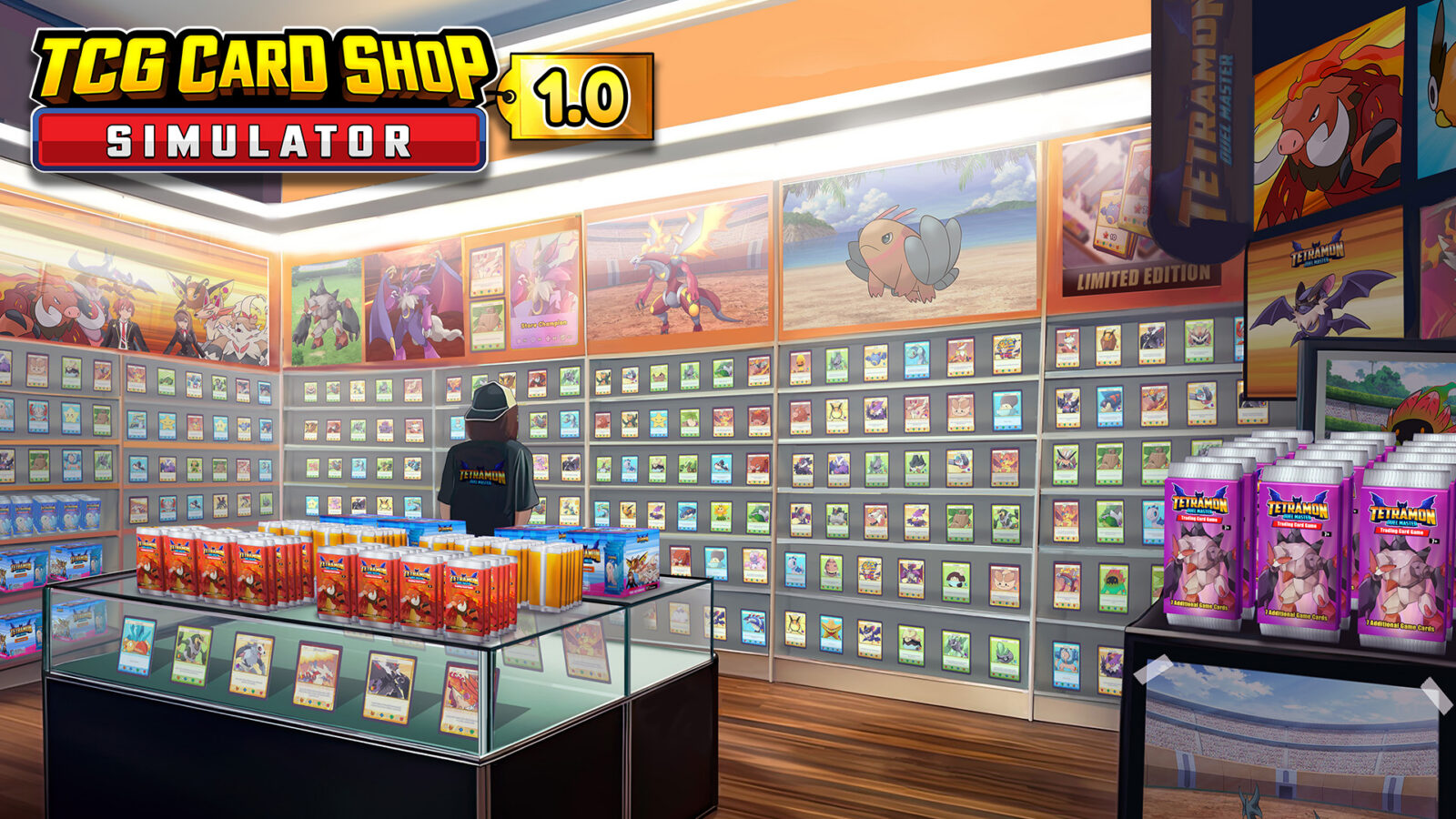
Managing your own card store in TCG Card Shop Simulator is an addictive experience, but once you've mastered the basics, you might crave more customization. This is where the TCG Card Shop Simulator BepInEx framework comes into play, acting as the essential bridge for community-made modifications. Whether you want to automate pricing or overhaul the entire visual aesthetic of your shop, installing this mod loader is the first critical step to unlocking the game's full potential.
Why You Need BepInEx for Your Shop
For those new to the modding scene, BepInEx is a universal plugin loader designed specifically for Unity-based games. By integrating TCG Card Shop Simulator BepInEx into your local game directory, you allow the game to run custom scripts and assets created by the modding community. Without this, your game remains strictly in its vanilla state, limiting you to the features provided by the developer, OPNeon Games.
| Feature | Vanilla Experience | Modded Experience |
|---|---|---|
| Pricing | Manual adjustment | Auto-set & smart rounding |
| Visuals | Standard card designs | Custom textures & themes |
| UI/UX | Basic menus | Advanced configuration managers |
| Content | Base game expansions | Community-added sets & packs |
Step-by-Step Installation Process
Getting everything up and running is straightforward if you follow the correct sequence. The most reliable way to obtain the files is through the official TCG Card Shop Simulator Nexus Mods page, which ensures you are using a verified, safe source.
- Close the Game: Ensure the application is completely shut down via Steam.
- Locate Game Folder: Right-click TCG Card Shop Simulator in your Steam Library, select "Manage," and click "Browse local files."
- Extract Files: Download the BepInEx pack, extract the contents, and drag them directly into the root folder where your game's
.exefile resides. - Verify: Launch the game. If you see a console window or can press "F1" to open the Configuration Manager, you have succeeded.
Pro Tip for Troubleshooting If the F1 menu does not appear, try holding the "Fn" key while pressing F1. Some laptop keyboards override the primary F-keys with media controls, which can interfere with the mod menu.
Managing Your Mods with Ease
Once you have the TCG Card Shop Simulator BepInEx framework installed, managing individual mods becomes much simpler. Rather than manually replacing files, most modern mods now utilize a simple "drag-and-drop" method into the BepInEx/plugins folder. Community feedback suggests that using a dedicated mod manager, like the "Real TCG Overhaul Mod Manager," can further streamline the process by automatically handling dependencies and updates.
Essential Components for a Stable Setup
When building your mod collection, you should always check for dependencies. Many high-quality mods rely on common frameworks:
- ConfigurationManager: Allows you to tweak mod settings in real-time (F1 menu).
- Enhanced Prefab Loader: Necessary for custom card assets and textures.
- API Extensions: Often required by large-scale overhaul mods to function correctly with the latest game version.
Avoiding Common Installation Errors
Even with a perfect setup, technical hitches can occur. According to community reports on platforms like Discord, the most common error is placing files in the wrong directory. Ensure that winhttp.dll is sitting directly next to your main game executable. If the game crashes upon launch, it is often a sign that a specific mod is outdated or incompatible with your current game version. Always check the mod’s "Last Updated" date on its download page.
| Common Issue | Likely Cause | Solution |
|---|---|---|
| Game won't launch | File path mismatch | Ensure files are in the root directory |
| F1 Menu missing | Improper extraction | Re-install BepInEx core files |
| UI glitched | Conflicting mods | Remove recent mods to isolate the issue |
| Save corruption | Version mismatch | Keep backups of your save files |
Tips for a Seamless Modded Experience
Before diving into heavy modding, remember that TCG Card Shop Simulator BepInEx modifies game logic. Always back up your save files before adding new mods. You can find your saves in the local app data folder—keeping a compressed folder of these files is a great habit to prevent data loss. Furthermore, prioritize mods that are well-documented; if a mod lacks a "Readme" file or clear instructions, it may be more prone to bugs.
Frequently Asked Questions (FAQ)
Q: Is using BepInEx safe for my PC? A: Yes, provided you download it from trusted sources like Nexus Mods or official community-verified links. BepInEx is a standard tool for modding Unity games.
Q: Will TCG Card Shop Simulator BepInEx work with my existing saves? A: In most cases, yes. However, adding significant content-changing mods can sometimes lead to issues. Always back up your save files before installing new mods.
Q: How do I remove a mod if it breaks my game?
A: Simply navigate to your BepInEx/plugins folder and delete the folder associated with the problematic mod. This will revert that specific feature to its default state.
Q: Does installing mods disable my Steam achievements? A: Generally, single-player simulator games allow for modding without impacting achievements, but always ensure you are not using "cheat" mods if you wish to maintain the integrity of your game progression.