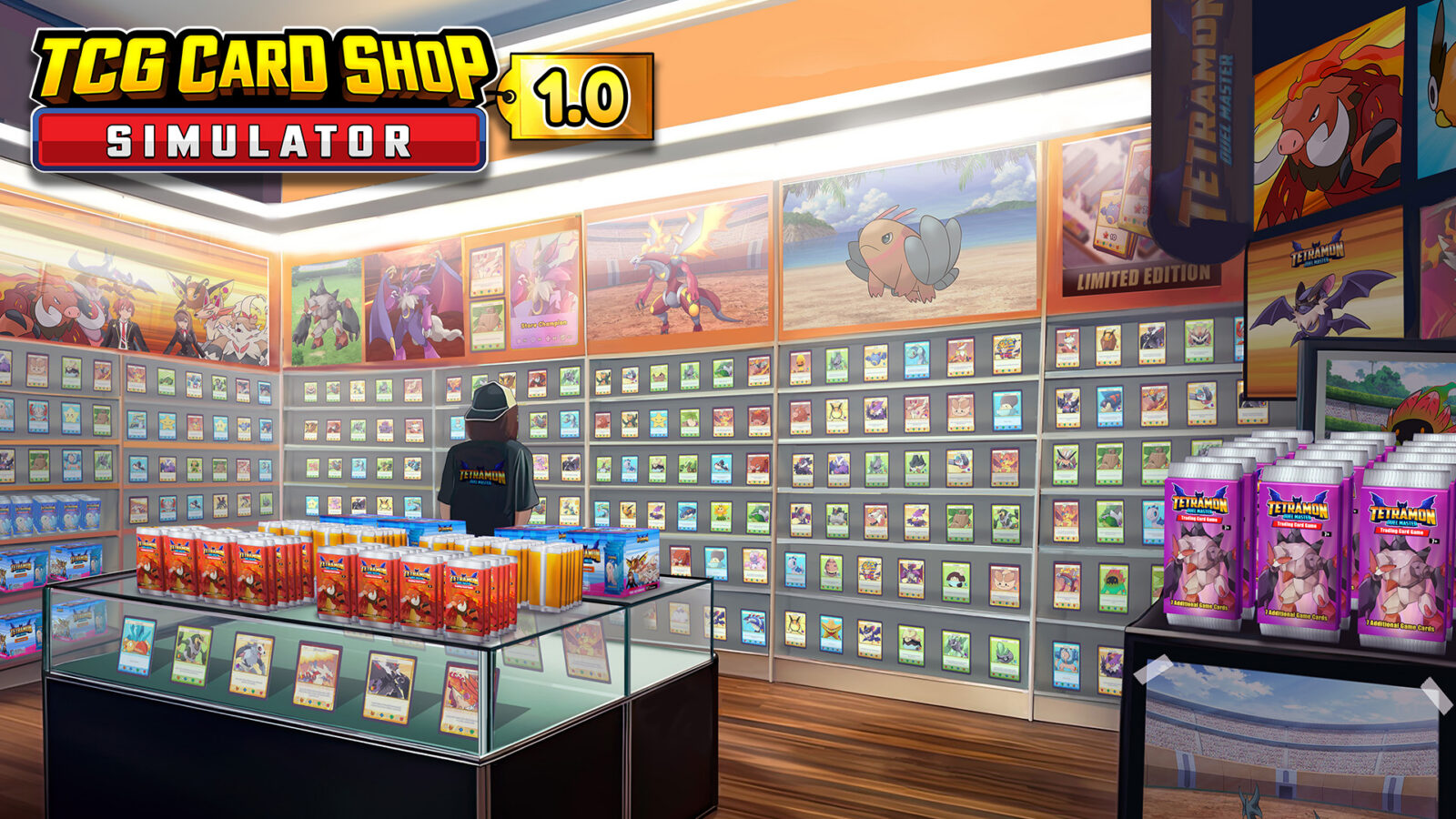
Struggling with TCG Card Shop Simulator controller support? Discover how to play efficiently on your gamepad with our expert setup and configuration guide.
Published:
Table of Contents
Managing a thriving trading card business is a dream for many, but operating the store with a mouse and keyboard isn't the only way to play. If you are wondering about TCG Card Shop Simulator controller support, you have come to the right place to optimize your workflow and increase your profits.
Whether you are playing on a handheld device like the Lenovo Legion Go or lounging on your couch with an Xbox controller, understanding how to navigate the game's interface is crucial. In this guide, we will break down exactly how you can master your shop's operations using a gamepad and where to find the best solutions if you need a more tailored experience.
Understanding Native Controller Functionality
Out of the box, the game provides a functional layout for players who prefer gamepads over traditional input methods. According to recent community reports, basic navigation and shop management are fully accessible using standard Xbox-style controller configurations.
To get started with your daily shop routine, here are the essential control mappings you should memorize:
Action
Controller Input
Walk Around
Left Thumb Stick
Look Around
Right Thumb Stick
Sprint
Left Trigger (LT)
Jump
Right Trigger (RT)
Crouch
Push Left Thumb Stick
Open Phone
Y Button
Interact / Pick Up
A Button
Open Pack / Discard
Y / A (Contextual)
By mastering these, you can efficiently handle your inventory, stock shelves, and manage customers without ever touching your mouse. Using the D-pad is particularly helpful when interacting with the register, as it allows you to snap between menu items and price fields, significantly speeding up the checkout process.
Why Controller Optimization Matters
When you are deep into managing your TCG empire, speed is everything. A minor delay in processing a customer’s payment or fumbling with the card organization screen can cost you valuable time during peak store hours. Proper TCG Card Shop Simulator controller support helps you maintain a seamless flow between ordering stock and hosting tournaments.
Effective controller usage allows you to:
Streamline Restocking: Quickly grab and place booster boxes onto shelves.
Efficient Checkout: Use the D-pad to jump between computer screens and cash piles.
Comfortable Gaming: Experience long sessions without the strain of sitting at a desk.
If you find that your current setup feels clunky, remember that the game's UI is designed to be interactive. Always look for the on-screen prompts; the game will often highlight the button you need to press, such as pressing Y to open your phone or A to confirm a purchase.
Pro Checkout Technique
When a customer is paying, use the D-pad to "snap" your cursor directly to the money or the credit card machine. This eliminates the need for slow, manual mouse dragging, allowing you to serve multiple customers in rapid succession.
Enhancing Your Experience with Modded Support
While native support covers the essentials, the community has developed advanced solutions for those who use complex gameplay mods. If you are utilizing mods like "Trading Overhaul" or "Binder Overhaul," you might find that the standard controls don't reach every menu.
A popular community-developed fix is the Controller Support mod available via Nexus Mods. This plugin is highly recommended if you want to navigate custom UI screens—like card trade offers and binder filter panels—entirely with your D-pad and A/B buttons.
Recommended Mods for Controller Users
Mod Name
Primary Benefit
Controller Support
Enables gamepad navigation for custom/modded UI.
Binder Overhaul
Adds advanced filtering that becomes D-pad compatible with the fix.
Trading Overhaul
Simplifies complex trade menu buttons for controller users.
Installing these tools typically requires BepInEx 5.x. Once installed, the features activate automatically whenever you open the relevant menu, making your gameplay significantly smoother.
Troubleshooting Common Control Issues
Even with the best settings, you may occasionally run into quirks. Most issues regarding TCG Card Shop Simulator controller support stem from hardware connectivity or overlapping input layers.
Controller Not Detected: Ensure your controller is connected before launching the game. If you are using Steam, check the "Steam Input" settings in your Library for the game.
Camera Drift: If your camera moves on its own, it is likely a deadzone issue. You can adjust this in the Windows controller settings or via the Steam controller configuration dashboard.
Inconsistent Snapping: If the D-pad isn't snapping to the menu items, try closing and reopening your phone or interacting with the register again to reset the input focus.
If you are a new player, remember to visit the Official TCG Card Shop Simulator Steam Page for the latest updates and developer announcements, as they frequently refine the UI based on player feedback.
FAQ: Mastering Controls in TCG Card Shop Simulator
Q: Does TCG Card Shop Simulator support controllers natively?
A: Yes, the game features built-in controller support for basic movement, store management, and register operations, making it highly playable without additional software.
Q: Can I use a controller with mods like Binder Overhaul?
A: By default, some modded menus may be difficult to navigate. You should download the dedicated "Controller Support" plugin from Nexus Mods to enable full D-pad navigation for these specific screens.
Q: Is it faster to play with a mouse or a controller?
A: While a mouse is traditionally faster for precise inventory management, experienced players can reach comparable speeds on a controller by using the D-pad "snap" functionality at the register.
Q: Will using a controller prevent me from getting Steam Achievements?
A: Absolutely not. You can fully manage your shop, open packs, and earn all 50 Steam Achievements while using a controller or even a handheld PC like a Steam Deck or Legion Go.
By incorporating these tips, you will transform your store into a professional operation that is as comfortable to manage as it is profitable. Whether you are stocking shelves or hosting a massive tournament, your controller is a powerful tool to help you dominate the card shop market.